Settings and performance
Set text size, subtitles and volume before you play; disable the animated title-menu background if motion bothers you; rebind the controller if the glyphs are wrong. Minimum spec is Windows 7 SP1+ with a DX10-class GPU — broad enough to read as 'will boot', not 'will run well'.
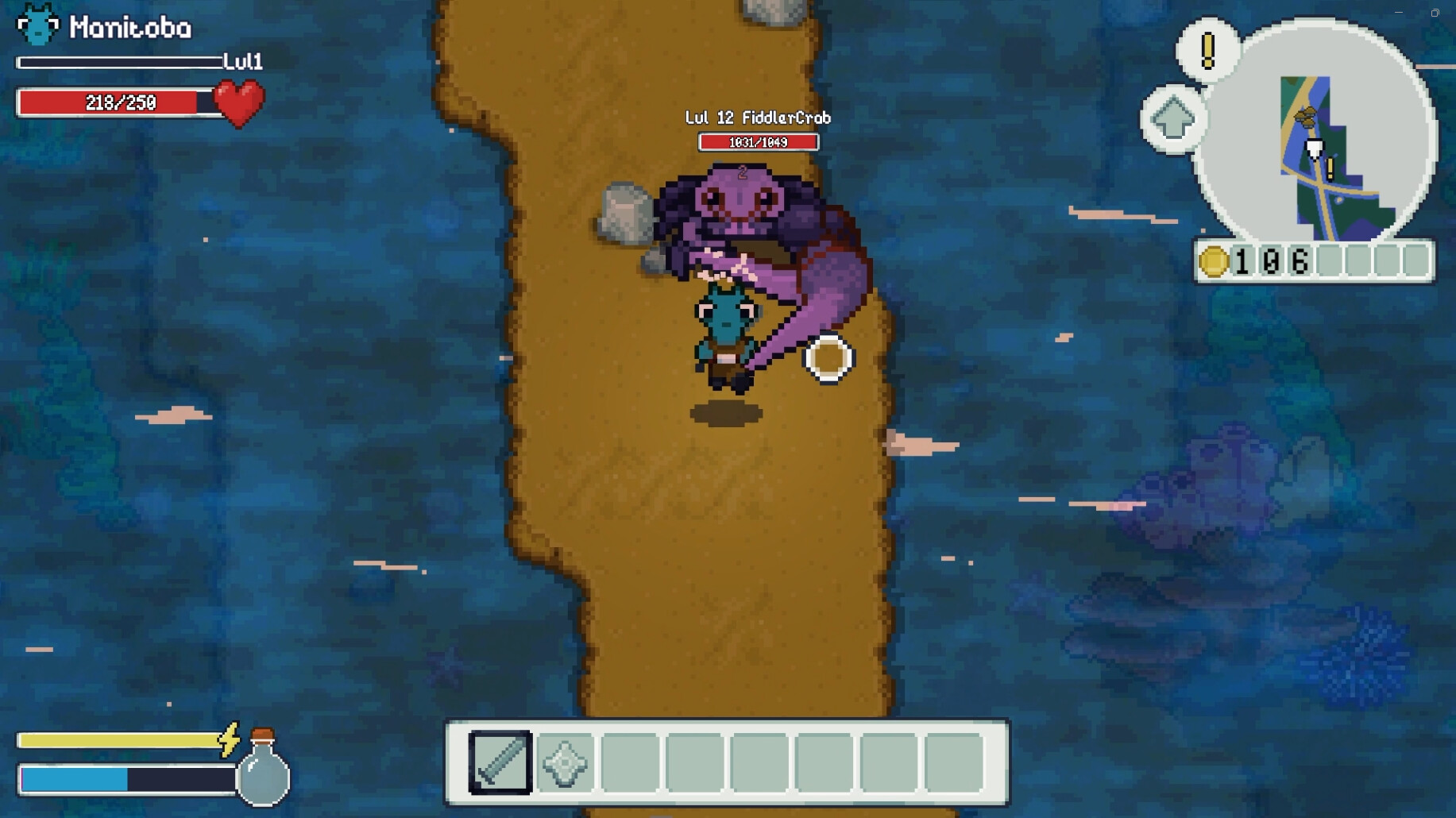
Settings that exist before you need them
The store page publishes the game's accessibility and control feature flags, which is unusual for an indie release and worth reading as a checklist before your first session — especially for anyone who has bounced off pixel-art RPGs because of text size or motion.
| Setting | What it does | Notes |
|---|---|---|
| Adjustable Text Size | Scales the UI text | The pixel font is legible, but UI scaling is the fix if you play on a large monitor or a TV |
| Subtitle Options | Subtitles for spoken audio | Relevant because the game ships with full English audio |
| Custom Volume Controls | Separate volume sliders | Music is one of the most-praised parts of the alpha, and the sliders let you keep it loud and the rest quiet |
| Keyboard Only Option | Play without a mouse | Listed explicitly, so a keyboard-only run is supported |
| Playable without Timed Input | Removes timing pressure | Aimed at players who cannot do reaction-based input |
| Controller support | Full controller support | Store page lists DualShock and DualSense support explicitly |
| Save Anytime | Manual saves whenever you want | Useful in a procedural world — save before a dungeon you have not scouted |
| Steam Cloud / Family Sharing | Standard Steam features | Both listed on the store page |
| Steam Achievements | Achievements are supported | Count not published |
Motion and comfort
One alpha player reported motion sickness from the animated title menu and during character setup, and the developer's response was to add a checkbox in settings to disable that animated background. If movement-heavy menus bother you, find that option before you spend an hour in the character creator.
Beyond that specific toggle, no motion or camera-comfort settings are documented. This is a fast, dash-driven game in the combat layer, so if you are sensitive to camera movement, treat the first session as a test rather than assuming it will be fine.
Controls worth rebinding
The August 2026 patch (1.0.9) added controller rebinds with the ability to swap a bound key with another, which matters because alpha players asked for correct button prompts rather than hand-mapping their own. If your controller shows the wrong glyphs, rebind rather than fighting it.
There is also a Steam deck adjustments thread in the game's Steam discussions, which is the place to look if you play on a handheld. Nothing has been officially promised about Deck verification status.
System requirements
The published minimums, straight from the store page:
| Component | Minimum |
|---|---|
| OS | Windows 7 (SP1+), Windows 10 or Windows 11 |
| Processor | x86 / x64 architecture with SSE2 instruction set support |
| Graphics | DX10, DX11 or DX12 capable |
| Additional | Hardware vendor supported drivers |
| Platforms listed | Windows and macOS — Linux is not listed |
Those minimums are deliberately broad (they read like engine defaults rather than tuned targets), so treat them as "will boot" rather than "will run well". This is a game with a very large, procedurally generated world, and the April 2026 patch was explicitly a performance fix pass — meaning performance has been an active issue rather than a solved one.
Before you start a long session
- Set text size and volume first — both are one-time fixes you will not want to do mid-dungeon.
- Turn off the animated menu background if motion in menus affects you.
- Check your controller glyphs and rebind if they are wrong.
- Turn subtitles on if you play with the music up; the soundtrack is a highlight and it is easy to talk over dialogue.